How to Recover a Supabase Project Paused for More Than 1 Year
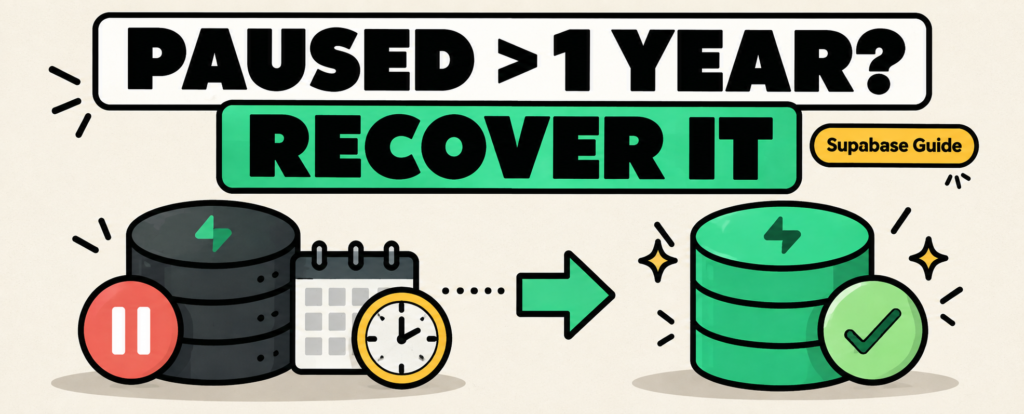
You open Supabase after months away from an old project and see that it is paused.
Normally, that is easy to fix: click Resume project.
But if the project has been paused for more than a year, Supabase no longer allows the normal one-click restore through Studio. The good news is that this does not automatically mean your data is gone.
Supabase now lets you download the available database backup and Storage objects, create a new project, and migrate the old project into it.
The important part is doing it before the old project is permanently deleted.
Why Supabase Pauses Projects
Supabase may automatically pause inactive projects on the Free Plan.
A project can become a candidate for pausing when it receives too little user database activity over a seven-day period. Supabase says project owners typically receive a warning email before the pause and another email once the project has actually been paused.
Paid projects are not automatically paused for inactivity.
For a recently paused Free project, recovery is simple:
Dashboard → Project → Resume project
Supabase currently provides a one-year restore window for this normal Studio recovery flow.
Once that window expires, recovery becomes a migration rather than a resume.
What You Can Still Recover
For an old paused project, Supabase currently allows you to download:
- The database backup
- Your Supabase Storage objects
Both are available from the paused project’s overview before the project is deleted.
This distinction matters.
Your database backup can restore things such as tables, records, schemas, and database-related configuration.
Your actual Storage files are separate. Images, PDFs, uploads, videos, and other bucket objects must also be downloaded and restored. Supabase stores Storage metadata in Postgres, but the actual files live separately.
Think of the recovery as:
Old Paused Project
       ↓
Database Backup + Storage Files
       ↓
New Supabase Project
Step 1: Download Everything Before the Project Is Deleted
Open the old paused project in Supabase Studio.
From the Project Overview, download:
Database backup: the .backup file shown in the Backups section.
Storage objects: the files from each Storage bucket.
Do this first.
Supabase explicitly warns that once a project is deleted, its associated data and backups are permanently removed and cannot be recovered.
For a large Storage bucket, downloading individual files manually may be painful. Supabase supports bulk access through its CLI and S3-compatible tools such as rclone or Cyberduck.
Before moving on, verify that your backup files actually exist locally.
Step 2: Create a New Supabase Project
Create a fresh Supabase project.
Do not assume the database restore will recreate every project-level setting.
Supabase recommends configuring the new project to match the old environment, including relevant extensions, webhooks, Realtime publications, and other settings.
This is also a good time to use a current PostgreSQL version rather than trying to keep an old paused environment alive indefinitely.
Step 3: Restore the Database
Open the Connect dialog in the new project and copy the Session Pooler connection string.
Add your new database password.
If your downloaded backup is compressed with .gz, unzip it first.
Then restore it with psql:
psql -d "[CONNECTION_STRING]" -f /path/to/backup_file.backupSupabase notes that you may see errors such as:
object already existsor similar messages related to existing schemas and constraints.
These can occur because a new Supabase project already contains default platform schemas before you restore the old backup. Supabase documents these errors as expected in this migration workflow.
Do not judge the restore only by whether the terminal printed errors.
After it finishes, open the new project and check your important tables and records.
Step 4: Restore Supabase Storage
Restoring the database does not put your old Storage files back into their buckets.
For downloaded Storage objects, Supabase currently documents restoring them with the CLI:
supabase login

supabase link --project-ref [NEW_PROJECT_REF]

supabase storage cp /path/to/downloaded/files ss:///bucket_name -r --experimental
Repeat the process for each bucket you need to restore.
Afterward, verify a few real files from your application rather than simply checking that the bucket exists.
A database can look healthy while user avatars, invoices, product images, or attachments are still missing.
Step 5: Rebuild the Parts a Database Restore Does Not Cover
A Supabase project is more than Postgres.
Depending on how your old application was configured, you may need to review:
- Auth configuration
- OAuth providers
- API keys
- Realtime settings
- Storage configuration
- Edge Functions
- Webhooks
- Database extensions
- Scheduled jobs
Supabase’s current recovery guide includes a Management API workflow for copying project configuration from the paused project to the new one when you have the required Owner or Admin access.
Treat this as a migration checklist, not simply a database import.
Before pointing your production app to the new project, test login, important queries, uploads, scheduled jobs, and any external integrations.
Could You Restore the Old Backup Locally Instead?
Yes.
If you mainly need to inspect or extract old data rather than rebuild the hosted project immediately, Supabase also supports restoring a downloaded backup into a local Supabase environment.
Their current workflow uses:
supabase db start --from-backup db_cluster.backupafter configuring the matching Supabase Postgres version. Supabase notes that the resulting local database is intended for development and inspection, not as a production deployment.
This can be useful when you only need to recover a few tables or verify that an old backup contains the data you expect.
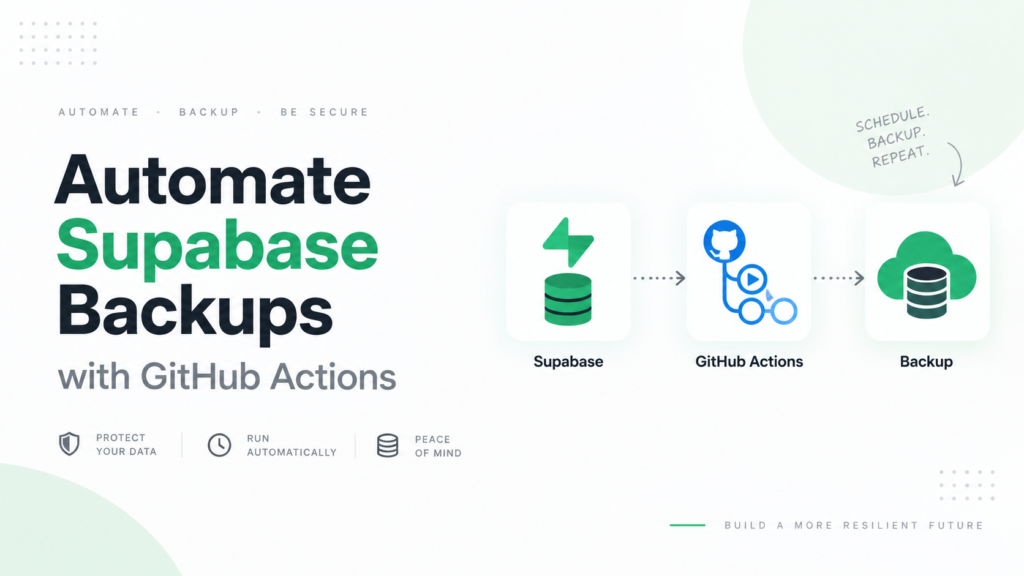
The Part You Should Fix Before This Happens Again
Recovering an old paused project is possible, but it is not a pleasant backup strategy.
You have to retrieve the database, retrieve Storage separately, create a new project, restore the database, upload files again, recreate configuration, and test the application.
That is a lot of work for something as simple as needing an old copy of your database.
An independent backup changes the situation:
Supabase
    ↓
Scheduled Backup
    ↓
Storage You Control
If you use SupaBackup, scheduled Supabase database backups are sent directly to your connected Google Drive. SupaBackup currently offers a free weekly backup plan for databases up to 500MB, while the Pro plan provides daily backups for databases up to 5GB.
The point is not to replace Supabase.
It is to avoid making the Supabase project itself the only place from which you can recover your database.
If a side project matters enough that you would be upset to lose it six months from now, it is worth creating a backup while the project is still easy to access.