How to Automate Supabase Backups with GitHub Actions
Backing up your Supabase database manually works until the day you forget to do it.
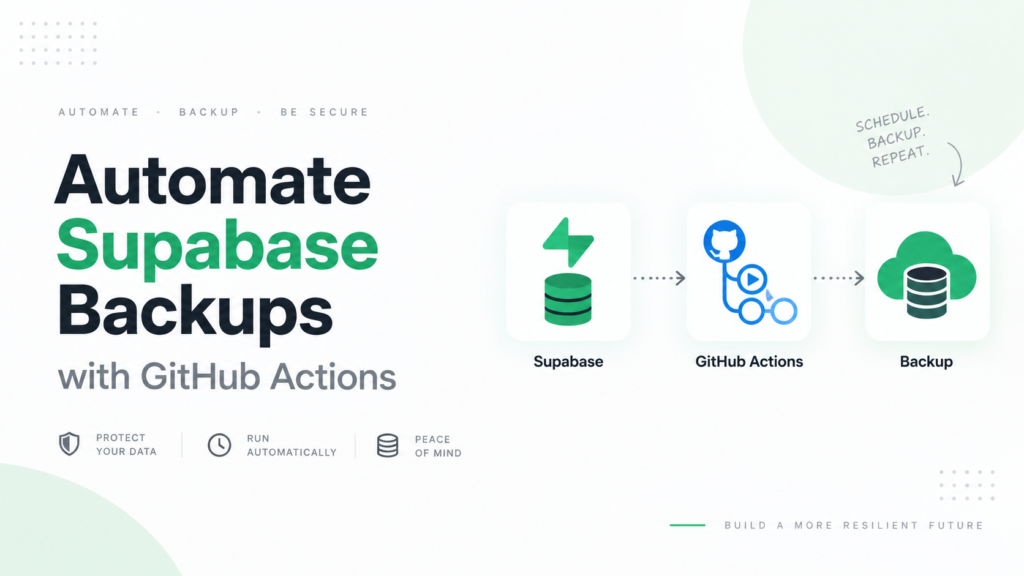
If you already keep your project on GitHub, GitHub Actions provides a convenient way to automate Supabase backups on a schedule. A workflow can connect to your database, run the Supabase CLI, create SQL dump files, and store the resulting backup without requiring your computer to stay online.
In this guide, we’ll build a scheduled Supabase backup workflow from scratch and discuss some important limitations you should understand before relying on it for production data.
Why Automate Supabase Backups?
Supabase already provides managed database backups for eligible paid projects. According to Supabase, Pro, Team, and Enterprise projects receive automatic daily backups, with different retention periods depending on the plan. Supabase also recommends that Free-plan users regularly export their databases and maintain off-site copies.
Creating your own backups can still be useful even when managed backups are enabled.
For example, you may want:
- An additional copy outside your Supabase project
- Longer retention
- Portable SQL backups
- A backup before important deployments
- Independent disaster-recovery copies
- More control over when backups run
GitHub Actions makes scheduling this process relatively simple.
How Supabase Database Backups Work
Supabase provides the supabase db dump command for exporting a remote Postgres database.
Under the hood, the command uses pg_dump while applying Supabase-specific handling for managed schemas and roles. Supabase’s documentation recommends creating separate backups for roles, schema, and data.
The basic commands are:
supabase db dump --db-url "$SUPABASE_DB_URL" -f roles.sql --role-only

supabase db dump --db-url "$SUPABASE_DB_URL" -f schema.sql

supabase db dump --db-url "$SUPABASE_DB_URL" -f data.sql --data-only --use-copy
These generate three files:
| File | Contains |
|---|---|
roles.sql | Database roles |
schema.sql | Tables, functions, policies, and database structure |
data.sql | Database records |
Keeping these separately also makes the backup easier to understand and restore.
Step 1: Get Your Supabase Database Connection String
Open your Supabase project and go to the Connect section.
Supabase currently recommends using the Session Pooler connection string by default, while the direct connection can be used when your environment supports IPv6 or the appropriate IPv4 configuration.
Your connection string will look similar to:
postgresql://postgres.PROJECT_REF:PASSWORD@HOST:5432/postgresThis string contains your database credentials, so never hard-code it inside your GitHub repository.
Step 2: Add the Database URL to GitHub Secrets
Open your GitHub repository and navigate to:
Settings → Secrets and variables → Actions
Create a new repository secret:
SUPABASE_DB_URLPaste your Supabase connection string as its value.
GitHub Actions secrets are specifically designed for sensitive values such as passwords, API keys, and connection strings. A secret only becomes available to a workflow when you explicitly reference it.
Your workflow can then access it using:
${{ secrets.SUPABASE_DB_URL }}Do not place the actual database password directly inside your YAML file.
Step 3: Create the GitHub Actions Workflow
Inside your repository, create:
.github/workflows/supabase-backup.ymlAdd the following workflow:
name: Supabase Database Backup

on:
  workflow_dispatch:

  schedule:
    - cron: "17 2 * * *"

jobs:
  backup:
    runs-on: ubuntu-latest

    steps:
      - name: Checkout repository
        uses: actions/checkout@v4

      - name: Install Supabase CLI
        uses: supabase/setup-cli@v1
        with:
          version: latest

      - name: Create backup directory
        run: mkdir -p backup

      - name: Backup database roles
        run: |
          supabase db dump \
            --db-url "$SUPABASE_DB_URL" \
            -f backup/roles.sql \
            --role-only
        env:
          SUPABASE_DB_URL: ${{ secrets.SUPABASE_DB_URL }}

      - name: Backup database schema
        run: |
          supabase db dump \
            --db-url "$SUPABASE_DB_URL" \
            -f backup/schema.sql
        env:
          SUPABASE_DB_URL: ${{ secrets.SUPABASE_DB_URL }}

      - name: Backup database data
        run: |
          supabase db dump \
            --db-url "$SUPABASE_DB_URL" \
            -f backup/data.sql \
            --data-only \
            --use-copy
        env:
          SUPABASE_DB_URL: ${{ secrets.SUPABASE_DB_URL }}

      - name: Compress backup
        run: |
          tar -czf supabase-backup-${{ github.run_id }}.tar.gz backup/

      - name: Upload backup artifact
        uses: actions/upload-artifact@v4
        with:
          name: supabase-backup-${{ github.run_id }}
          path: supabase-backup-${{ github.run_id }}.tar.gz
This workflow creates roles, schema, and data dumps, compresses them, and uploads the archive as a GitHub Actions artifact.
GitHub artifacts persist files created during a workflow so they can be downloaded after the job finishes.
Step 4: Understand the Backup Schedule
This line controls when the backup runs:
- cron: "17 2 * * *"It means the workflow runs once every day at 02:17.
GitHub Actions supports POSIX cron scheduling. Scheduled workflows run from the default branch, and GitHub also supports timezone-aware schedules. GitHub notes that scheduled jobs can sometimes be delayed during periods of heavy Actions usage, particularly near the beginning of an hour.
Using minute 17 rather than exactly 00 can therefore be preferable.
We also included:
workflow_dispatch:This adds a Run workflow option inside GitHub Actions, allowing you to trigger a backup manually whenever necessary.
Test Your Supabase Backup
Don’t assume an automated backup works simply because the workflow exists.
Go to:
GitHub Repository → Actions → Supabase Database Backup
Click Run workflow.
After the workflow completes, verify that an artifact was generated. Download and inspect the archive.
It should contain:
backup/
├── roles.sql
├── schema.sql
└── data.sql
For a production backup strategy, you should also periodically test whether those files can actually restore a database.
A backup that has never been restore-tested is an assumption, not a recovery plan.
Should You Store Supabase Backups in Git?
Generally, no.
Supabase’s own GitHub Actions backup documentation explicitly warns against backing up database data to a public repository.
Even private repositories should be treated carefully because database dumps may contain customer information, email addresses, application data, internal records, or other sensitive information.
Uploading the backup as a GitHub Actions artifact is preferable to committing SQL dumps directly into your Git history, but it still should not automatically be considered your long-term backup destination.
For stronger protection, consider encrypting backups before uploading them and storing independent copies in dedicated external storage.
GitHub Actions Backup vs. Dedicated Backup Storage
GitHub Actions is excellent for running backup automation, but execution and storage are two different problems.
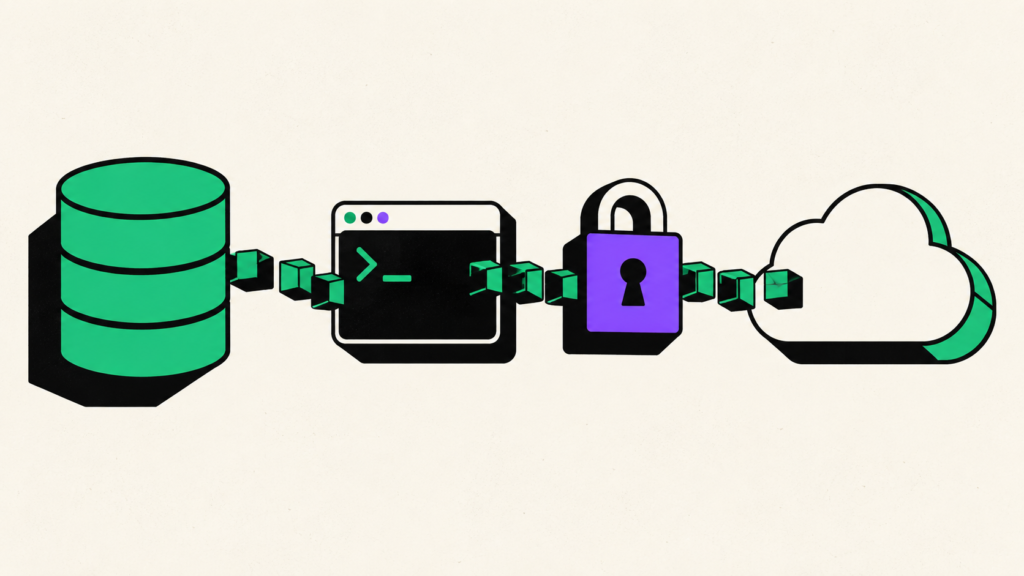
A stronger architecture looks like:
Supabase
   ↓
Database dump
   ↓
Encryption
   ↓
Independent backup storage
For example, the workflow could send an encrypted backup to object storage, Google Drive, or another destination instead of keeping the database dump primarily inside GitHub.
This separation matters because your source-code platform should not necessarily become your only disaster-recovery system.
Also remember that Supabase database backups cover PostgreSQL data. Supabase notes that database backups do not restore the actual files stored through the Storage API; the database contains metadata about those objects, not the objects themselves.
If your application relies heavily on Supabase Storage, plan a separate file-backup strategy as well.
Best Practices for Automated Supabase Backups
Keep the database connection string inside GitHub Secrets rather than your repository. Avoid public repositories for database dumps, and consider encrypting backup archives before sending them to external storage.
More importantly, maintain multiple backup copies when the data matters. Ideally, your recovery strategy should not depend entirely on the same provider that runs your application or source repository.
Finally, test restoration periodically. Automation can tell you that a .sql file was created; only a restore test can tell you whether that backup can actually help during an incident.
Conclusion
Automating Supabase backups with GitHub Actions is relatively straightforward. The workflow can run on a daily schedule, use the Supabase CLI to export roles, schema, and data, and store the resulting files without requiring a continuously running server.
For small projects, development environments, and additional backup copies, this can be a useful setup.
For production applications, however, treat GitHub Actions primarily as the automation layer rather than your complete backup strategy. Combine scheduled database dumps with encryption, independent storage, sensible retention, and regular restore testing.
That way, you’re not simply creating backups automatically—you’re building a recovery process you can actually depend on.